Associating SVCMON Points with Timers
The advantage of using multiple timers is that not every SVCMON point needs to be updated at the same rate.
Examples
- The minimum update rate should be used to update monitor host server characteristics that are not often subject to change, such as service executable and operating system versions.
- A medium update rate should be used to monitor items that change daily, but not at a fast rate such as disk space and CPU utilization.
- A rapid (high) update rate should be used to items such as monitor site/service status.
If using Calculated Points, a point that monitors a rate of change in days would require a much slower update rate than one that monitors a rate of change in minutes.
To Add a SVCMON Point to a Timer
- On the Timer Config view, select the desired point. If necessary, use the filter row at the top of the data grid to narrow the selection.
- Click to select the desired column text box, then type the desired filter; or click … to view the Filter Column by Text dialog box.
- For the Timer column, you can filter by configured timers.
- The default filter for all columns is <all>.
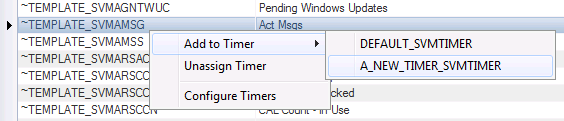
- Right-click the point (or Ctrl+Click to select multiple points), select Add to Timer, then select the appropriate timer from the list.
|
Add to Timer |
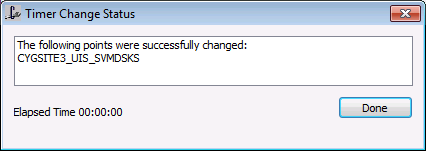
- The following status dialog box will appear and then the point will be moved under the selected timer group after you click Done.
|
Timer Change Status |
To Remove a SVCMON Point to a Timer
- On the Timer Config view, select the desired point(s). Filter the points if necessary.
- Right-click the point (or Ctrl+Click to select multiple points), select Unassign Timer.
- The point(s) will be moved to the No Assigned Timer group.

